
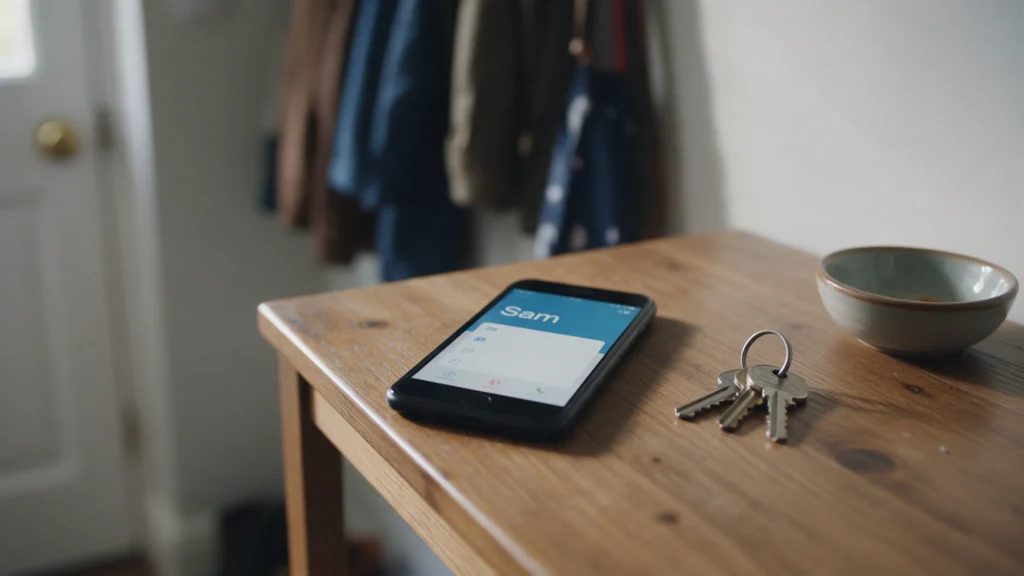
If you were taken ill or hurt and couldn’t speak, could someone holding your phone find out who to call? Most smartphones let you add emergency contacts and key medical details that can be seen from the lock screen, without your passcode. Setting it up takes about ten minutes, and it is worth thinking about what you put there.
The Be Ready website suggests adding emergency contacts or medical information to your mobile phone, often called “ICE” (in case of emergency) or “Medical ID”, so that emergency services can see it without having to unlock your phone. It adds two sensible cautions: think about how sensitive the information is, because anyone who has your phone could see it, and let the person you choose as your emergency contact know.
What to add, and what to leave out
- One or two emergency contacts. People who are likely to pick up, who know you well and who are happy to be called.
- Medical details that someone helping you would need, if you are comfortable sharing them: for example a serious allergy, a condition or a regular medication.
- Nothing you would mind a stranger reading. Lock-screen information is visible to anyone holding the phone. There is no need to add your home address, bank details or anything you would rather keep private.
On an iPhone: Medical ID
Apple’s Medical ID guide sets it up in the Health app:
- Open the Health app and tap the Summary tab.
- Tap your profile picture in the top corner, then tap Medical ID.
- Tap Edit or Add next to a field to fill in details such as medications, allergies and conditions, and add your emergency contacts.
- Turn on Show When Locked so the information can be seen from the lock screen.
Apple also has a Share During Emergency Call setting, which shares your Medical ID with the emergency services when you call or text them from your iPhone. Apple says some of its emergency data features are not available in every country or region.
On an Android phone
On many Android phones, including Google Pixel, emergency information lives in the Safety app (listed as Personal Safety in the Play Store). Google’s Android help page gives these steps:
- Open the Safety app and sign in to your Google Account if asked.
- Tap Your info, then add Medical information and Emergency contacts.
- To show it when your screen is locked, tap Emergency info access, then Show when locked.
Menus vary between phone makers and Android versions. If you cannot find the Safety app, search your phone’s Settings for “emergency”.
Check what a stranger would see
Once it is set up, lock your phone and look for the emergency option on the passcode screen, the way someone else would. Check that your contacts and details show as you expect, and that nothing appears that you would rather keep private. Do not place a call while you look: 999 is only for real emergencies.
Tell the people you have chosen
Be Ready suggests letting your emergency contact know. A quick message is enough: that you have listed them, and anything they would need to know if they got a call, such as who else to tell.
Keep a paper copy too
A phone can be flat, lost or broken just when it is needed. Be Ready also suggests writing important phone numbers on paper and keeping them somewhere easy to find, and it has a printable household emergency plan for recording them in one place. If you have children, our guide to teaching children the emergency basics covers helping them learn a grown-up’s number as well.
Keep it up to date
Look at it again when your medication changes, when a contact changes their number and when you get a new phone, since the details may not carry across. A regular reminder helps, much like the monthly reminder in our smoke alarm guide.
Updated 27 October 2026 for the government’s new Be Ready advice.
Sources checked 5 October 2026: Be Ready: be ready for emergencies; Apple Support: set up your Medical ID; Android Help: get help during an emergency; Pixel Phone Help: get help in an emergency.
 Where is my stopcock? How to find your stop tap and turn off water, gas and electricity
 The Priority Services Register: who can join, and how to sign up before winter
 How to make a flood plan: check your flood risk and sign up for warnings